Simulation
Write the fight, load it, run it on the ordinary console, replay the record. The sensor models are the real ones, so what you tune here transfers.
1. Write the scenario
Settings → Scenarios → + ADD. Pick a preset or describe the raid for Compose with AI, set ATTACK and DEFEND, then Review & create.
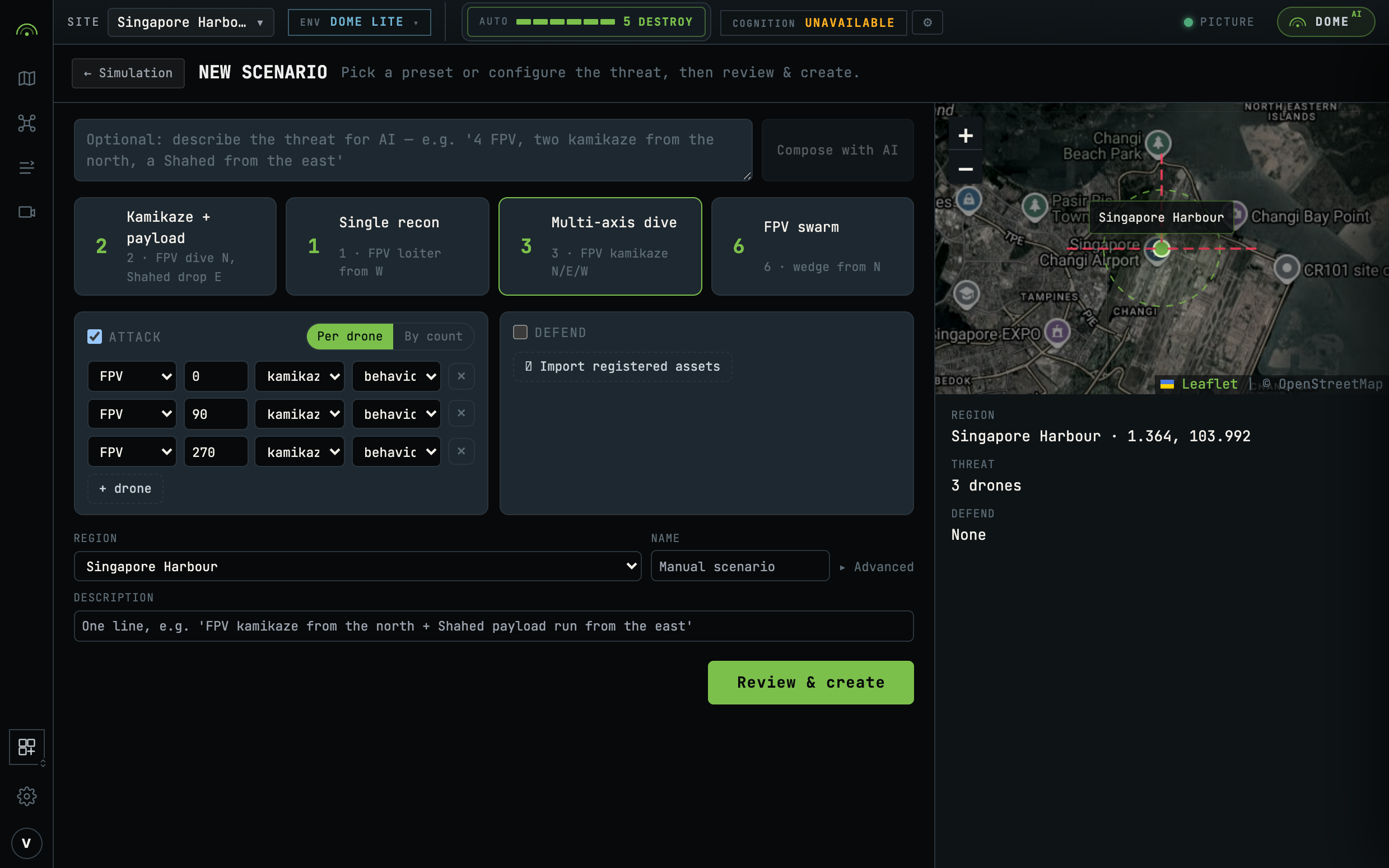
- Per drone or By count: a list of drones, each with its own bearing and intent, or a swarm.
- Intents: straight-in, kamikaze, payload drop, recon for attackers; patrol, loiter, intercept for defenders.
- Advanced: seed, geofence radius, video, and the sensor set.
- The Copilot drafts; it never saves. You press Review & create.
Everything a scenario can say, as one document: Scenario model.
2. Load it
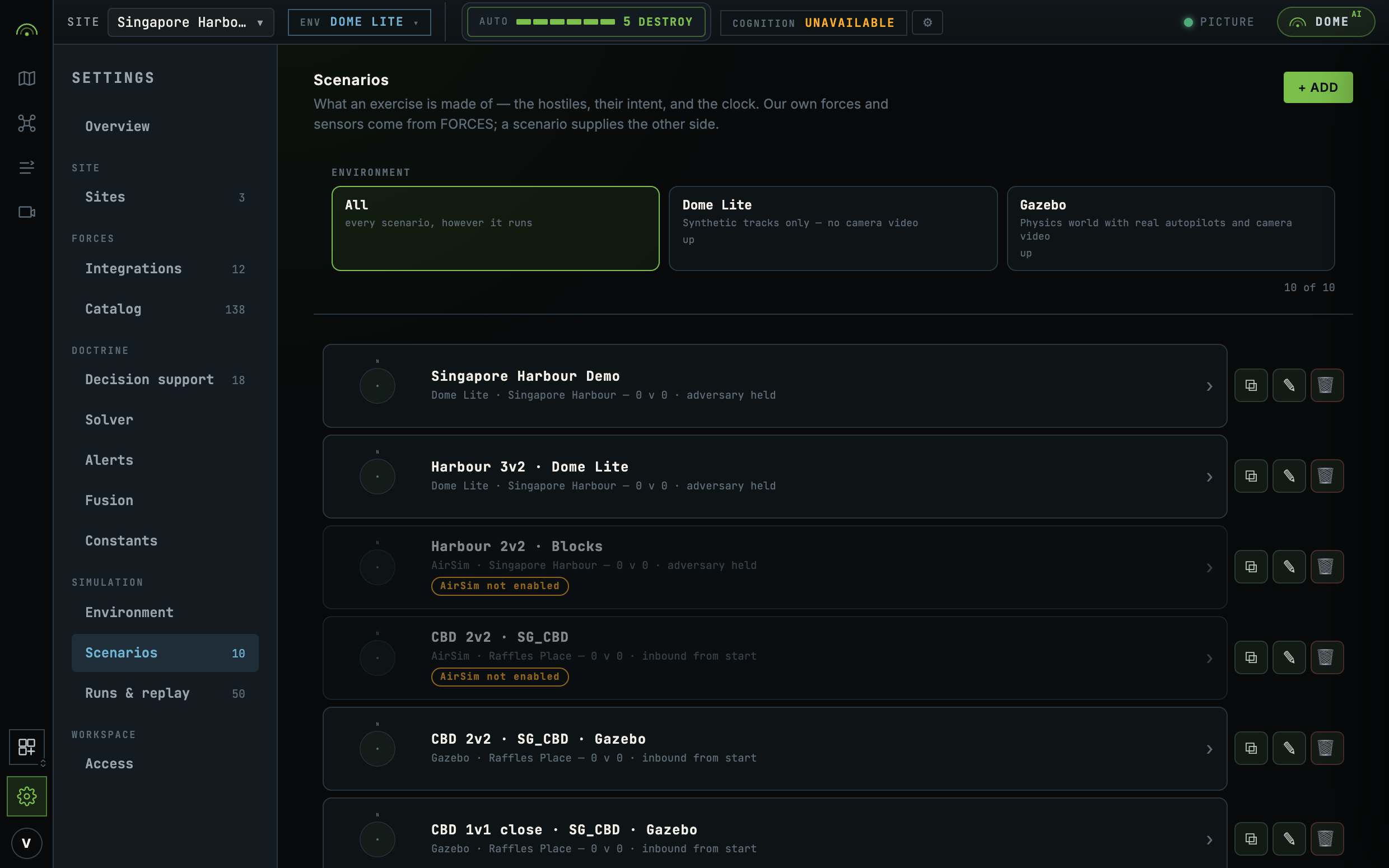
Settings → Scenarios, open one, Load.
| Environment | What it gives you |
|---|---|
| Dome Lite | Kinematic contacts in the server, real sensor models, no camera video. Nothing to install. |
| AirSim, Gazebo | A rendered world on another machine, with camera video. The deployment has to be configured with the engine; the card says whether it is answering. |
A scenario names its environment. Load is disabled, with the reason, when the deployment does not offer it or the engine does not answer. Switching environment is Settings → Environment, and it resets the picture. See Live and simulated.
3. Run it
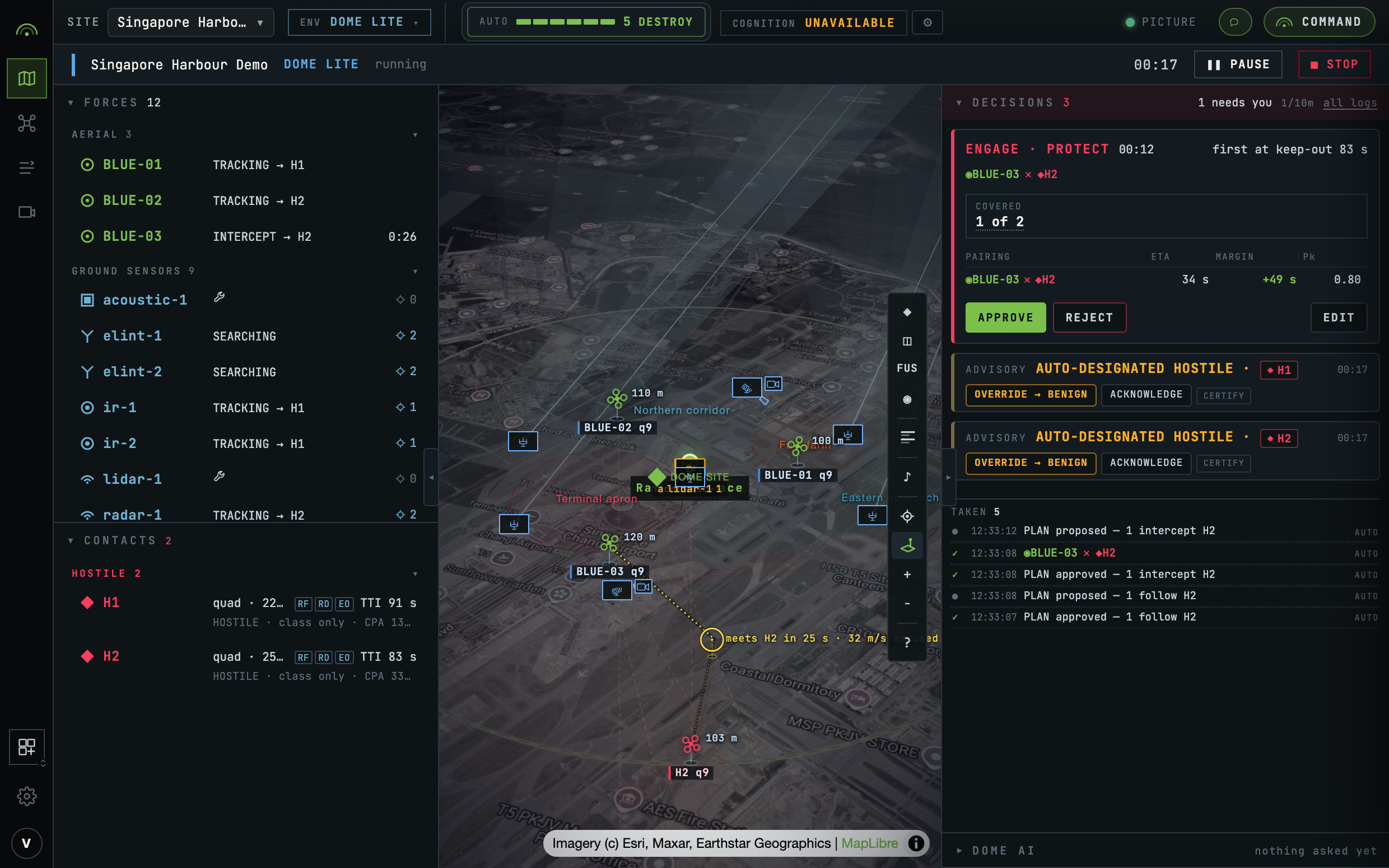
The console is the one you use live, with a run bar under the status bar.
| Control | Does |
|---|---|
| PAUSE / RESUME | Freezes sim time. The picture holds. |
| STEP | While paused, one frame. |
| STOP | Ends the run and records it. The environment stays attached. |
- The adversary flies from the moment the run starts.
- Decisions, the line and the stop window behave as they do live. Move the line mid-run and watch what it releases. See Decision support.
- A run's aircraft are simulated. If a run is bound to real registered aircraft, the run bar says in red that its commands reach them.
- Time scale above 1 runs faster than real time. Read the run clock, not a stopwatch.
4. Replay it
Settings → Runs & replay. Every run, its scenario, how long it ran, how it ended, and what it raised.
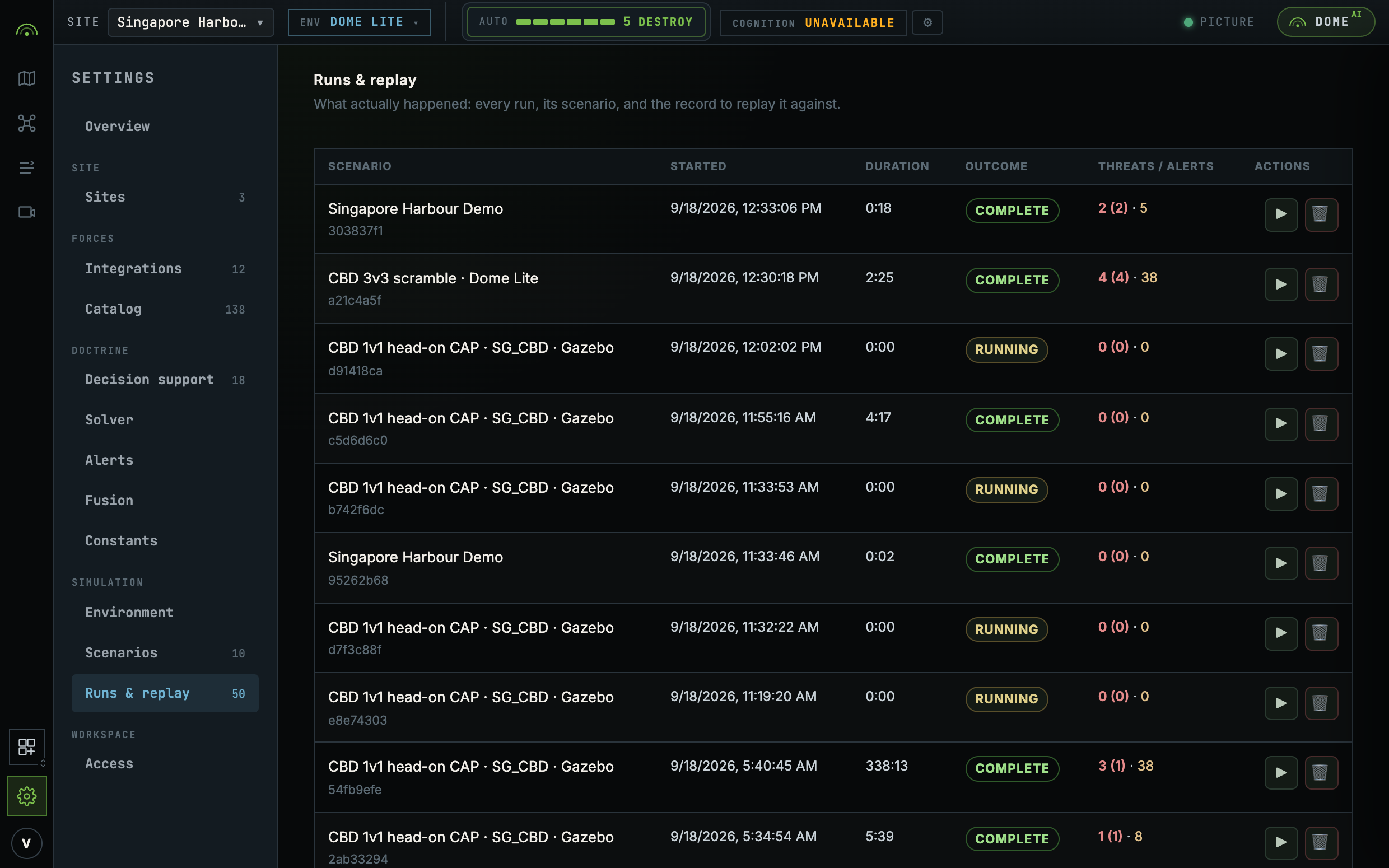
- Replay reads the recorded events, so it shows exactly what the system saw and decided.
- Every event carries its run's id. Two runs never mix.
- Complete stopped cleanly. Aborted was replaced by another run and keeps what it recorded.
- To compare: run it, change one thing (the line, a rule, a sensor), run the same seed again. The same seed replays the same raid.
The Copilot can narrate a finished run. See Agentic C2.
From a script
The same four steps over the API, in curl: Running a simulation.